Number
A number input field with validation
The number field generates an HTML 5 number input, which is great when you need a comfortable way to enter any numeric values. The number field also comes with built-in validation for numeric data.
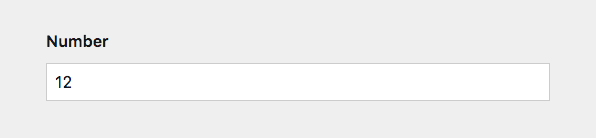
Example
fields:
  number:
    label: Number
    type: number
Field properties
| Name | Type | Default | Description |
|---|---|---|---|
| after | – | Optional text that will be shown after the input | |
| autofocus | bool |
– | Sets the focus on this field when the form loads. Only the first field with this label gets |
| before | – | Optional text that will be shown before the input | |
| default | – | Default number that will be saved when a new page/user/file is created | |
| disabled | bool |
– | If true, the field is no longer editable and will not be saved |
| help | – | Optional help text below the field | |
| icon | string |
– | Optional icon that will be shown at the end of the field |
| label | – | The field label can be set as string or associative array with translations | |
| max | float |
– | The highest allowed number |
| min | float |
– | The lowest allowed number |
| placeholder | – | Optional placeholder value that will be shown when the field is empty | |
| required | bool |
– | If true, the field has to be filled in correctly to be saved. |
| step | – | Allowed incremental steps between numbers (i.e 0.5) |
|
| translate | bool |
true |
If false, the field will be disabled in non-default languages and cannot be translated. This is only relevant in multi-language setups. |
| when | – | Conditions when the field will be shown (since 3.1.0) | |
| width | string |
1/1 |
The width of the field in the field grid. Available widths: 1/1, 1/2, 1/3, 1/4, 2/3, 3/4
|
Decimals
Decimals can be used by adding the step option.
fields:
  price:
    label: Price
    type: number
    step: .01
Minimum and maximum value
The min and max options define which numbers can be selected with the browser-specific up/down arrows and are also used to validate the input.
fields:
  temperature:
    label: Temperature
    type: number
    min: -50
    max: 250
before & after values
The number field can show additional text before or after the input. This is great when you need a price field for example:
fields:
  price:
    label: Price
    type: number
    min: 0
    before: €
How to use in templates/snippets
If your number field contains only integers, you can convert the value to a proper integer with the toInt() field method:
<?= $page->numberfield()->toInt() ?>For floating value, use the toFloat() method:
<?= $page->numberfield()->toFloat() ?>